There are two method to update your phone firmware. Either with Nokia Software Updater(NSU) or with Pheonix. This tutorial will teach you how to update your firmware with Nokia Software Updater (NSU).
Update N73 firmware with NSU is a very easy process. First of you will need
- Computer - recommended to use Laptop
- Data cable of N73
- Internet connection
- Nokia Software Updater (NSU) Download
- Nokia PC suite Download
- Nemesis Service Suite (NSS) Download
- Your N73 will Full Battery Charged
- First of all prepare yourselves a laptop or PC with internet connection. Download the latest version of Nokia PC Suite, Nokia Software Updater, and Nemesis Service Suite. Make sure you have the latest version of them if you are using Windows 7.
- Install Nokia PC Suite and Nemesis Service Suite(keep pressing next during installation). After install both software, plug your N73 with data cable to your computer, choose PC Suite. Make sure Nokia PC Suite detect N73 phone. If you need your data please backup all your data like contact, image, video, music, document..etc.
- This step is for those who want to change their product code.
Why change your product code?[Product Code List]
Open Nokia PC Suite>setting>manage connections. Untick everything on the List. After that, the Nokia PC Suite will show your N73 had disconnected.
Open Nemesis Service Suite, choose scan for new device>phone info>read(3). Now see your produce code(4).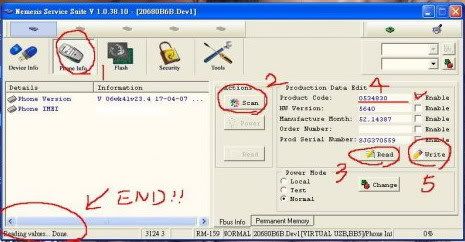 To change your product code, first tick the Enable besides your product code(4). Change your product code and click on write(5). Click read again to check if the product code had changed.
 - Open Nokia PC Suite>setting>manage connections. Tick series cable and USB cable. Make sure Nokia PC Suite show your phone had connected.
- Now Install Nokia Software Updater and open it.

First you will see this the interface. You can see your current firmware version and the version you will be updated.
Nokia Software Updater will download the latest firmware from server. The time to download will depend on your internet speed.
After the download had finish, NSU will update the firmware to your phone. Warning: make sure there are no electric blackout or data cable unplug during this process.
wait till this screen appear and you are done! - Wait for your phone to reboot. press *#0000# on your N73 to check your current firmware. See if it is updated accordingly.